The v0.3.0-beta is almost ready for release — Stay tuned!

A Step-by-Step Guide to Making Videos with BeatShare
BeatShare is a straightforward tool for turning audio tracks into video files directly on your computer. Whether you are prepping a single track or a whole batch of audio, the setup only takes a few minutes. Here is a quick walkthrough on how to load your files, customize the visuals, and render the final videos.
Adding Your Audio and Opening the Editor
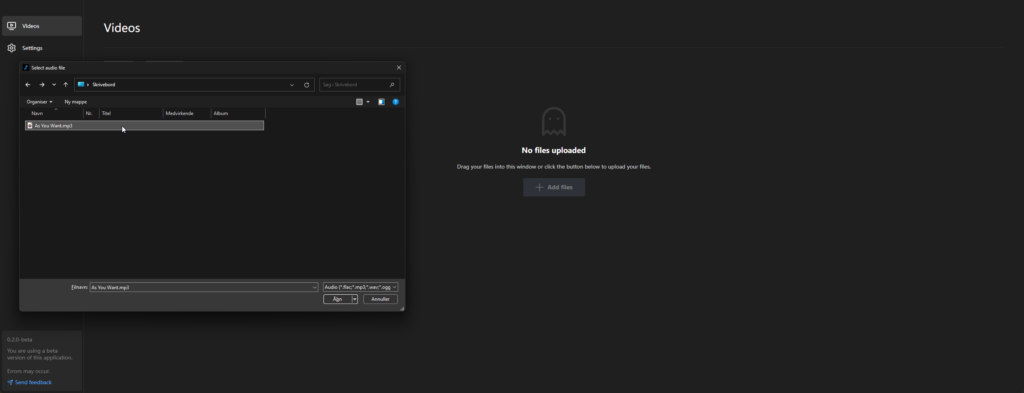
When you open the app, the first step is getting your tracks into the system. You can upload your audio file by clicking the ‘Add new file’ button, or you can just select one or multiple audio files from your computer and drag them directly into the window.
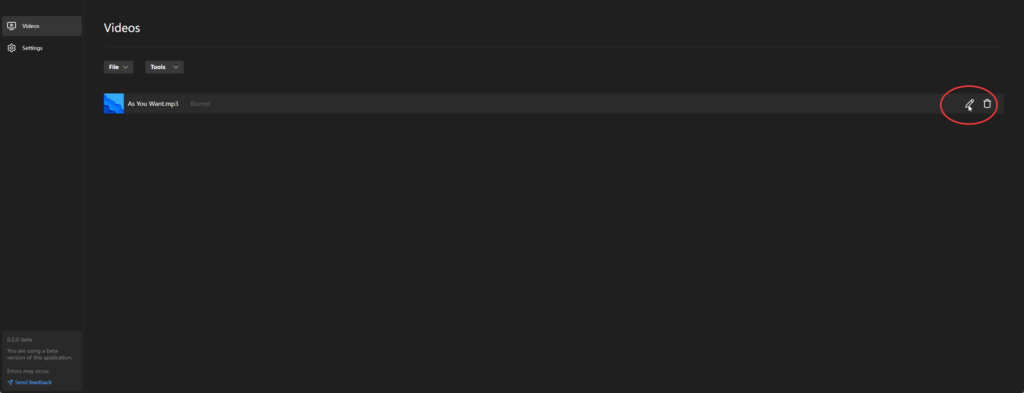
Once your files show up in the app, look at the list on the right-hand side. Next to the audio file you want to work on, click the small “pen” icon. This opens up the editing panel where you handle all the visual settings for that specific track.
Customizing the Look
Inside the editor, start by giving the project a title. Next, you will want to add a primary image to serve as the visual focus. The app supports a few different formats for this, so you can use anything from a static PNG or JP(E)G to an animated GIF if you want some motion.
After adding the image, you can select a video style to determine how the background behaves. You can choose between a Blurred style, a solid color background, or a fill image style.
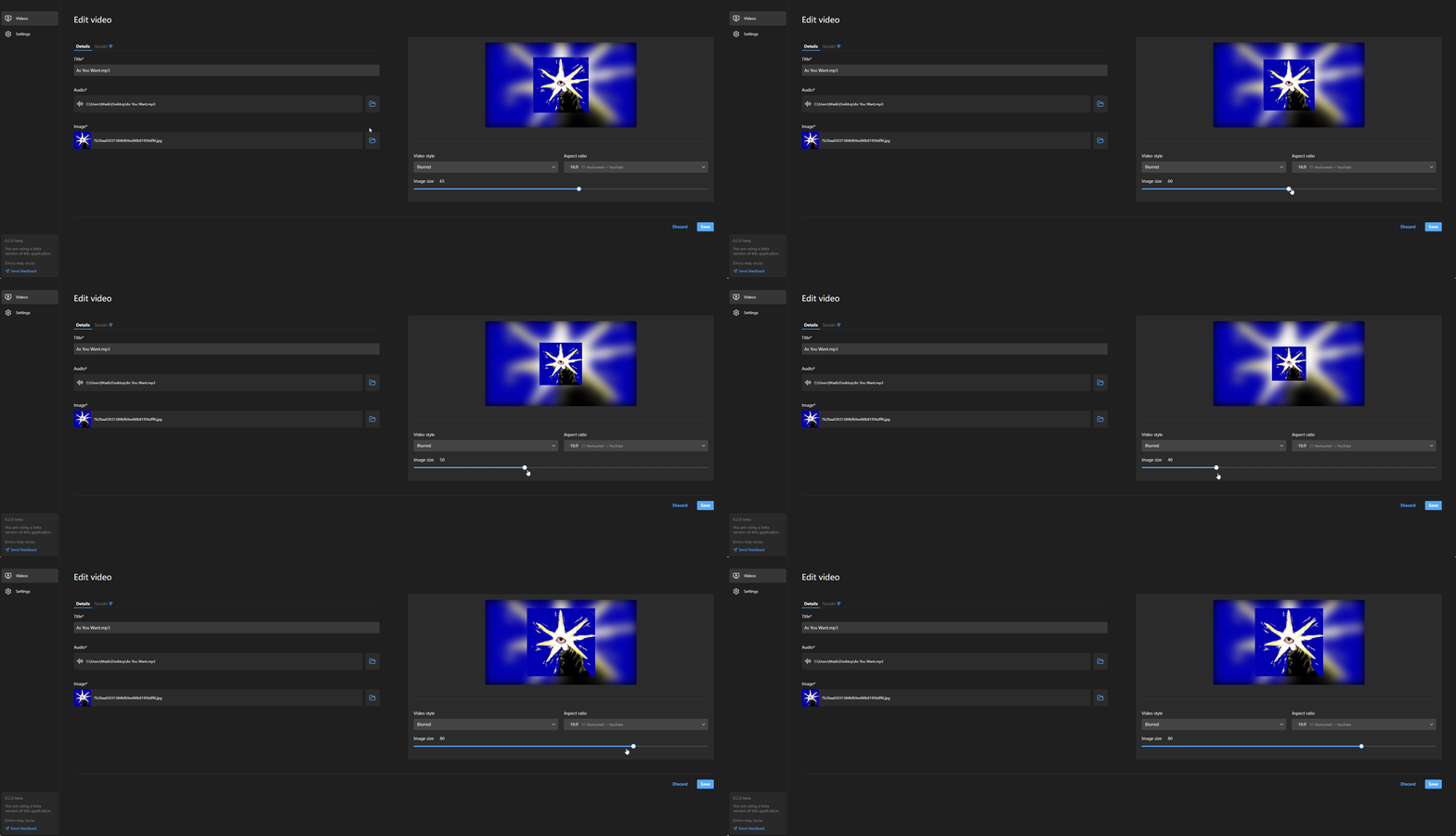
To get the framing right, adjust the video style by dragging the slider to increase the image size until you are satisfied with the layout. If you opted for a solid color background select the specific color you want using the color picker right below the slider. Once everything looks right, click save.
Rendering the Videos
If you have multiple tracks, you can repeat the editing process for each one in your list. When you are ready to export, go to the top menu, click the ‘Tools’ dragdown, and click ‘Render’.
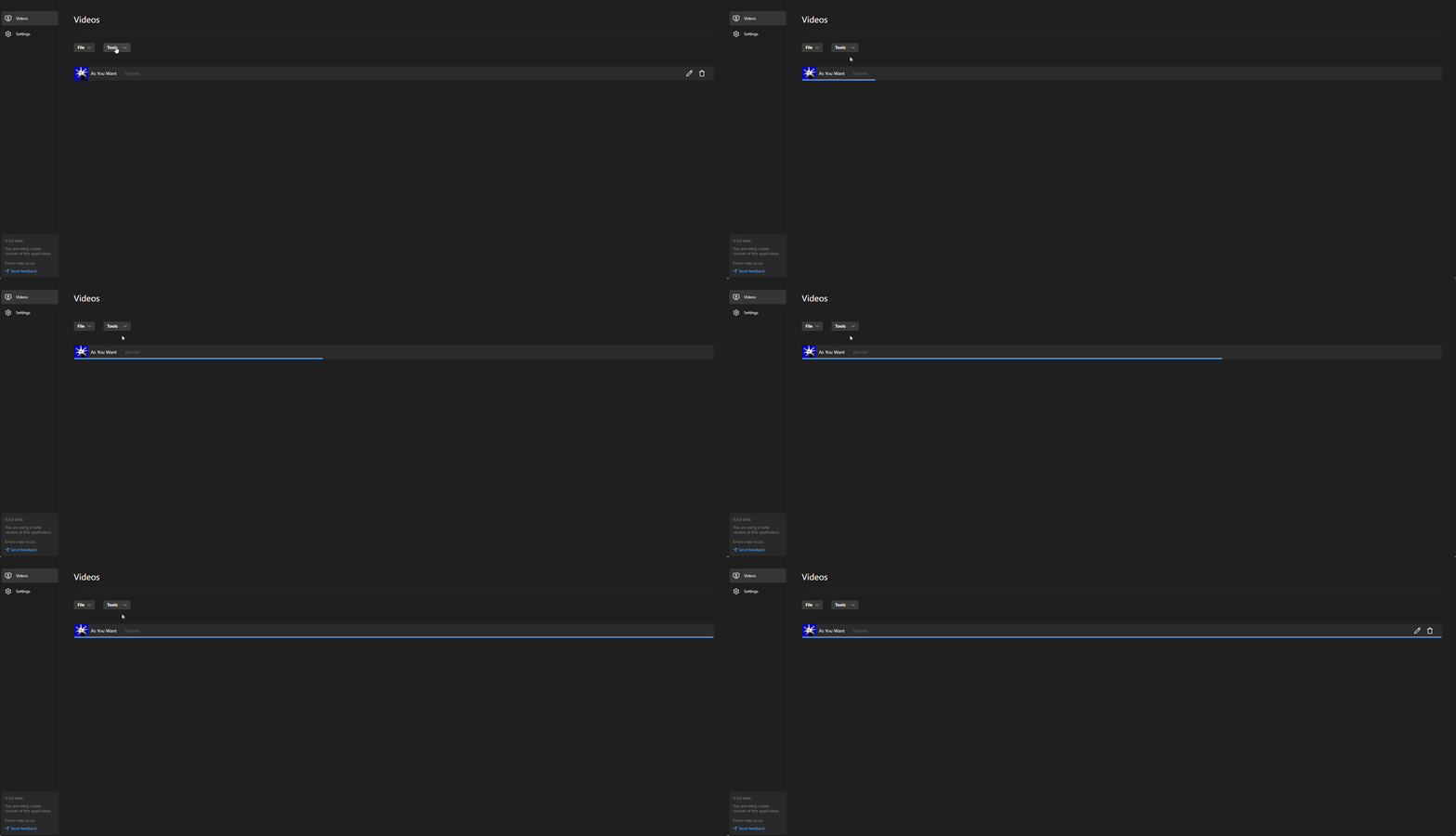
This will automatically render all videos added to your list one after the other. Because the app processes everything locally, the final videos will be put directly inside your local Videos > BeatShare folder as soon as the render finishes, ready to upload to YouTube and other platforms.